|
|
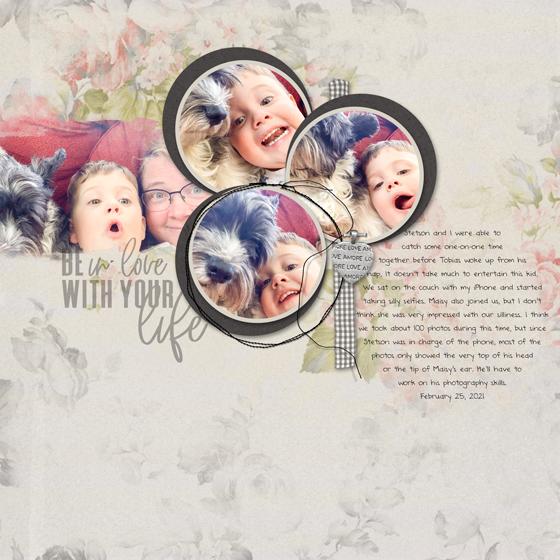
When was the last time you typed inside a shape?
Shapes are not only a fun way to add interest to your scrapbook page, but they are perfect for wrangling in the words of your journaling.
Quick Steps For Typing Inside a Shape
-
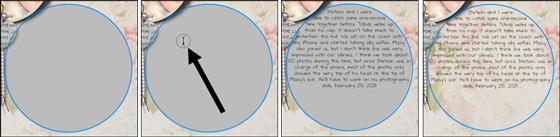
Add a shape to your document. I used the Ellipse tool, which is nested with the shape tools, but many of Adobe's shapes will provide a good result.
-
Get the Type tool with your favorite journaling font.
-
On your document, click inside the shape and type your journaling.
-
In the Layers panel, hide the Shape layer.
Fill the Shape!
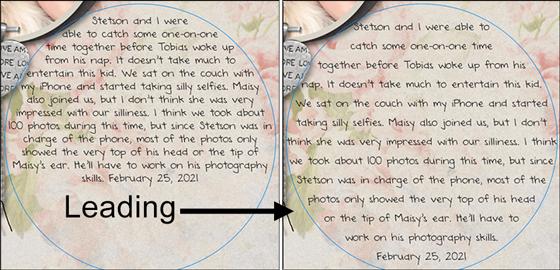
If your type does not completely fill the shape, the cool effect will be lost. Here are a few things you can try to make sure the shape is completely filled with type:
-
Slightly lower or raise the size of the type.
-
Change to a different journaling font.
-
Increase or decrease the Leading of the type (as shown below).
Make Something Great
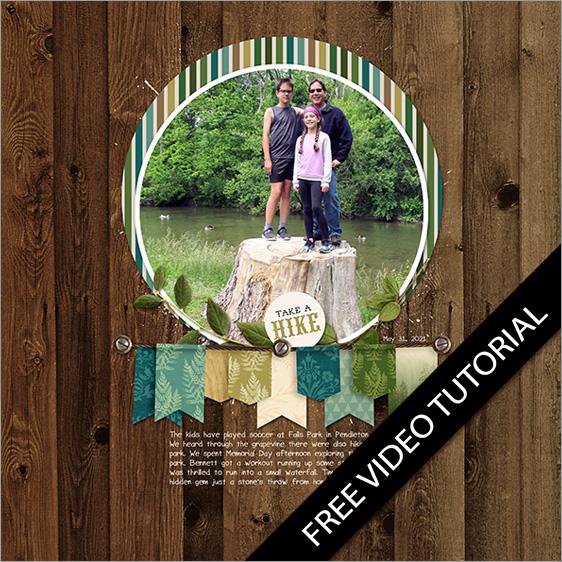
This week, Julie Singco has created a new FREE video tutorial for you showing how to create the offset frame on my page above. Enjoy!
Love and creative success,
Jen White, Owner & Instructor
P.S. The header above was created using Take Note by Kim B & Anita Designs. The page above was created using A Million Little Things by Angie Briggs.
Save 25% on Secrets of Terrific Type
Learn how to create the kind of gorgeous type that’s showing up everywhere, on T-shirts, designer pillows, picture frames, but especially on some of the coolest scrapbook pages.
NOTE: This is not a new class.
New FREE Video Tutorial
Offset Frame
by Julie Singco
Quickly add a trendy offset frame to your digital project. It’s a great way to draw attention to a photo.
This tutorial includes:
|
|
|
|
|
|